Drafting documents
This feature needs to be enabled for the institution by setting the editor_enabled field to true in the MegDocsConfig configuration.
Overview
Documents in MEG Docs can be either uploaded as PDF (and other formats), or edited directly on site.
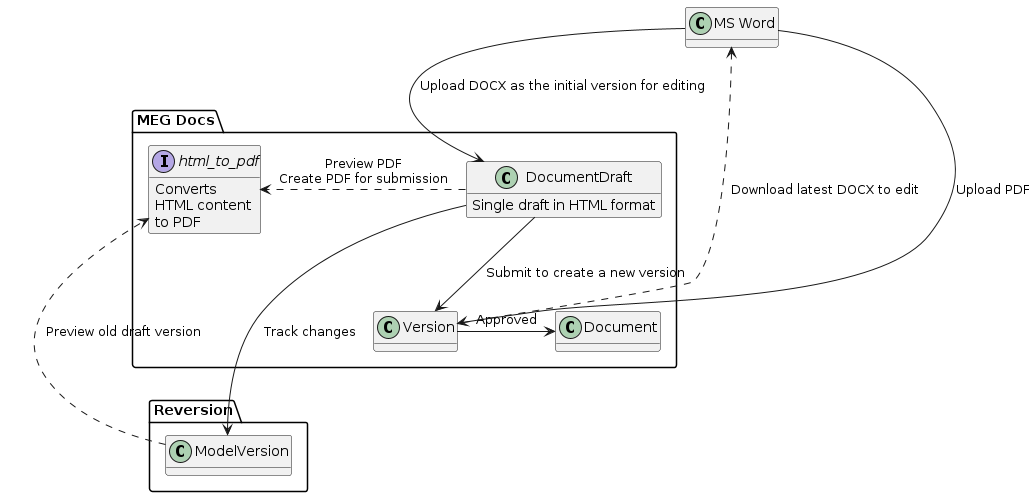
Document workflow using Draft or externally uploaded document
Whichever way you decide to draft a document, submitting the draft creates a new version every time it is submitted. If you are editing the document draft on site, there is only one version of the draft. This allows for easy collaboration. However, draft changes over time are tracked whenever the draft is saved.
Important
It is currently not possible to edit the draft by multiple users at the same time.
If you intend to edit document using MS Word, you need to download the source document (docx) from the latest version.
Creating a new document
A new, blank, document can be created in MEG Docs by selecting “Create document” from “Add Documents” dropdown. Creating a document requires “add document” permission.
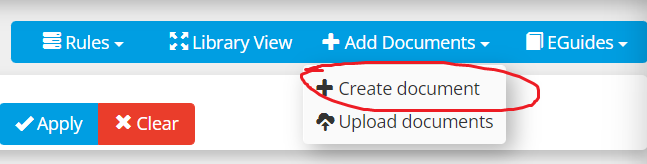
Click “Create document” to start drafting a new document
This creates a blank documents and brings you directly to a page where you can edit the draft.
Creating from a template
When creating a new document you have an option to apply a template.
Template cannot be applied to a document that already has contents. To change the template used in the document, you need to remove all contents from the document and save it. When the document is re-opened, you will be prompted to select a template again.
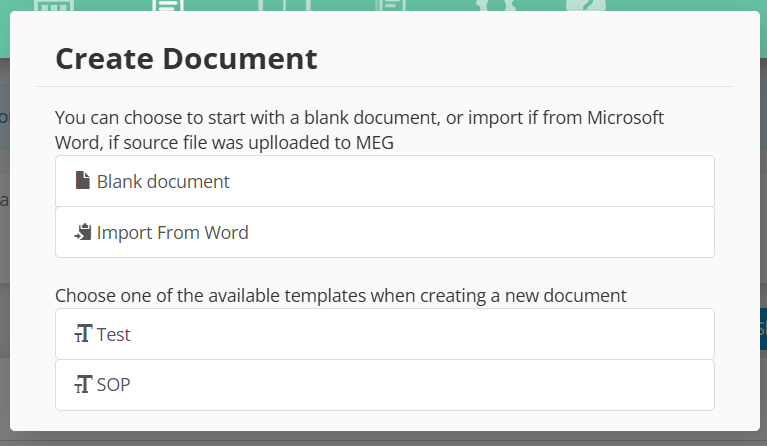
The pop-up will appear when you create a document, or when you edit a document that is blank. It allows you to select any template within the institution and apply it to the document.
Uploading a Word document
When creating a new document, you can choose to import contents from existing Word document in docx format by selecting Upload Word document.
This feature can be toggled using MEGDOCS_WORD_IMPORT_ENABLE variable.
Editing a draft
If a document was previously edited on MEG site, it’s draft version is available for further edits. Editing a document on-site requires “change document draft” permission, unless the user is listed in “authors” of the document.
After making your edits, click “Save” to save the draft.
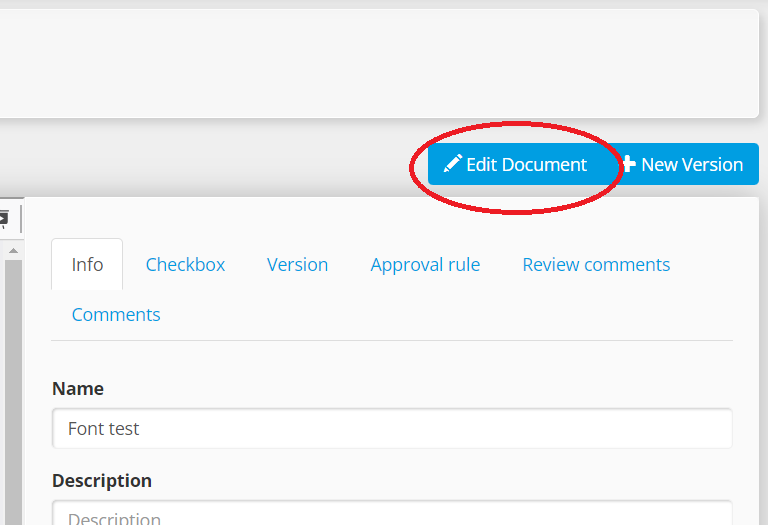
Select “Edit document” to edit existing document
Collaboration
Users can suggest changes and comment on documents contents, but only one person at a time can do it. While document is being opened by one user, other users will see a read-only view of the editor.
Once document lock has been released, the next person will have to reload the page to ensure then have the latest edits before they can start editing it. To release the document for other users, you can simply close the browser window / tab, or navigate away to another page.
The editing user must remain online to maintain the lock on the document while editing it as the lock will timeout at predetermined time.
Editing an uploaded document
Where a document was previously uploaded as PDF and no draft is available, a new draft version will be created.
When editing a document that was uploaded with a Word version (docx format), the Word content will be automatically imported and available in the editor as per Task #31803. This auto-import occurs when you go to edit the document content page after the version has been fully approved and published.
For documents without a Word version, the draft will initially be blank. If the current version of the document contains
a source in docx format, its contents can be imported into the initial draft.
This requires MEGDOCS_WORD_IMPORT_ENABLE to be set. Alternatively, if you have the original Word version
of the document, you can try pasting its contents to the editor.
Click Blank Document to start with a blank draft, and possibly paste document contents from clipboard, or Import from Word to import content from published version of the document.
Important
The Import option only imports currently published version. If there’s a version of the document in review, even approved, but not yet published, those changes will not be imported.
While importing contents from Word, some formatting may be lost or document may become malformed. Review the document after importing using the Preview option to see what it’ll look like once published.
Previewing changes
Implemented in Task #29402, is the ability to track changes to the draft over time and compare it to current version of the document.
- Show Differences
This option is available if there is a published version of the document. It highlights changes between the draft, and the published version. This option is not available if document’s or draft size exceeds length defined in
MAX_DIFF_CONTENT_SIZE.It is possible to preview the differences before saving the document. The Show Differences option compares content from the editor directly to published document.
- Change History
The Change History option shows a list of changes made to the draft over time, by whom and when. Select a version from the list to see a preview of the draft at that point in time in a PDF format.
It is possible to revert the contents of the document to any of the versions in the list by selecting Revert button.
Headers & Footers
A CKEditor plugin implemented in Task #29987 enables support for headers and footers. To add a header, use the H button, and to add a footer, F. The header can be edited at the top of the document. To edit the footer, scroll down to the very bottom of the document.
When exported or previewed as PDF, the header and footer will appear on every page of the document.
Text inside a header or footer will be left-aligned. To customize how text is aligned, or add multiple columns, add a table
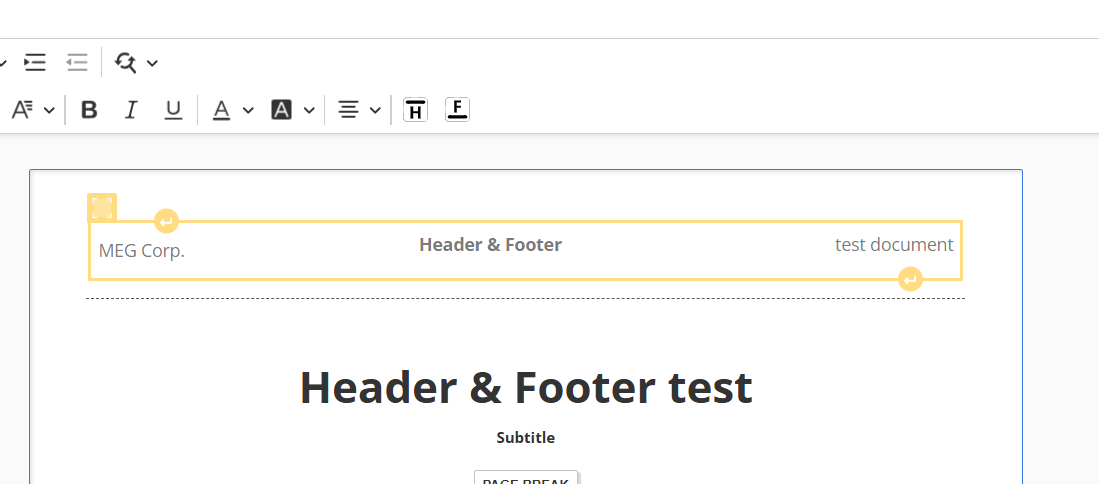
Insert a table to customize how text is laid out in the header or footer
Suggesting changes
To start suggesting changes to the document, enable track changes feature. Other users can approve or reject individual suggestions.
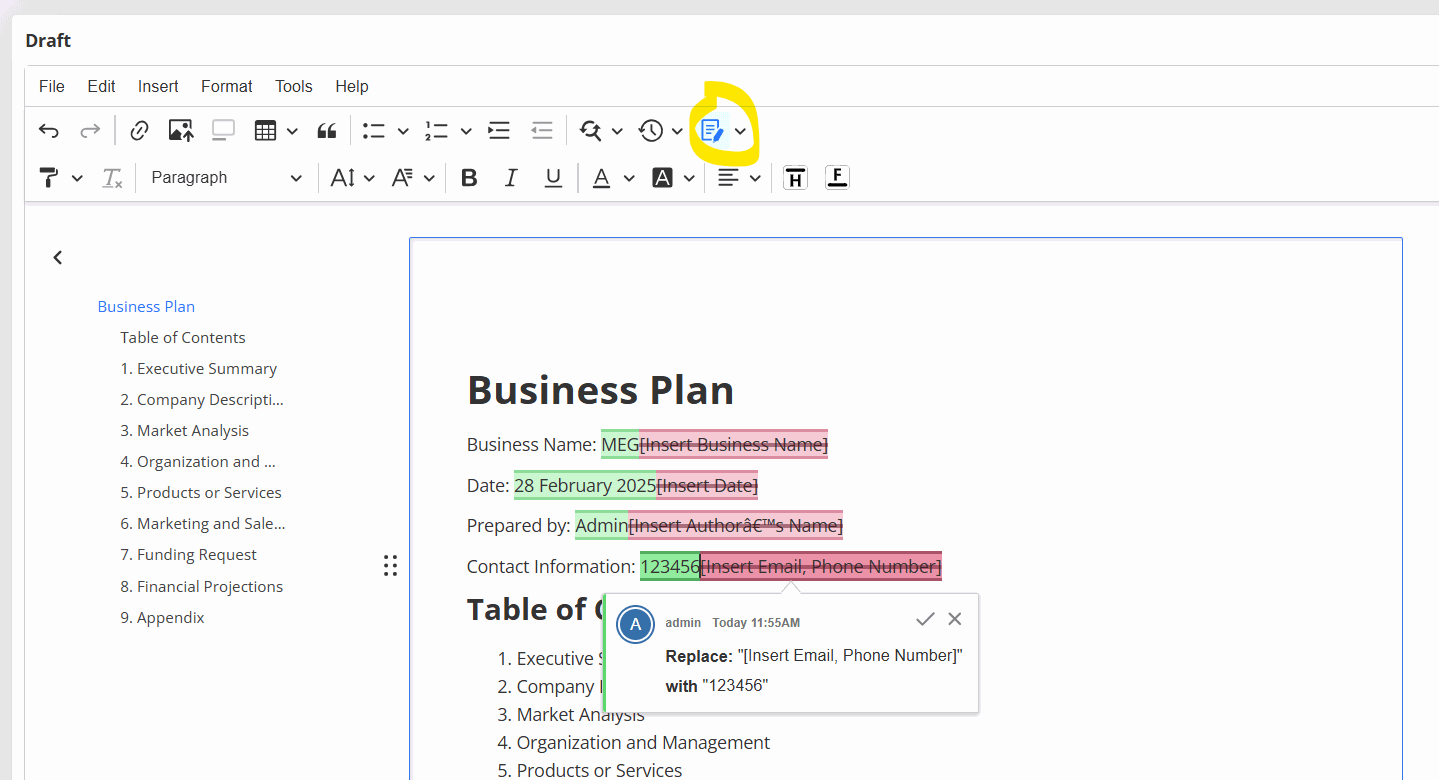
Click the Track Changes button to toggle between editing the document and tracking changes.
See also
Submitting draft for review
After making all the edits, you will want to submit it for review to have the new version published.
Click “Submit” to submit your edits as the new version of the document.
Note
Every time the draft is submitted, a new version is created. This may result in multiple versions being in review. This is expected to change in Task #29401.
The Submit action will:
Allow you to input version information (version number, summary of changes, etc)
Generate PDF document based on the draft
Create a new version of the document and attach the PDF document to it
In review
During the review, changes can be suggested and comments added to the document. The suggestions can be applied in the draft edit page. Some users (the creator and document controller as per Task #31153) can also accept these changes within the review page.
Any changes to the draft while it’s in review will trigger the version in review to be automatically updated (Task #30690).
There is a delay since document is last saved until the changes are visible in the review page (DRAFT_REVISION_UPDATE_DELAY_SECONDS).
The update includes the pdf version of the document and the plain text used to generate the diff.
Comments
Users can add comments to parts of document such as text or images, or discuss changes suggested in Suggesting changes.
Comments can be edited and deleted by their authors. Comment threads can be resolved by anyone with edit access to the document draft.
Click Comment (green circle) to add comment to the selected piece of text, or Comments archive (red circle) to view archived comments.
Comments archive
Archive contains resolved comments, and comments whose subject was removed, even if the comment itself has not been resolved. Resolved comments can be un-resolved in the archive dialog.
The archive contains resolved and unlinked comments. Replying to an archived thread re-opens it.
See also