Cloud save
The client app can backup un-submitted data to the cloud. This allows the user to continue filling out the form on another device, or extracting the data from a faulty device.
Backup all unsubmitted data
To back-up all data from the app to the cloud, go to Settings and scroll down to “Backup Forms” option.
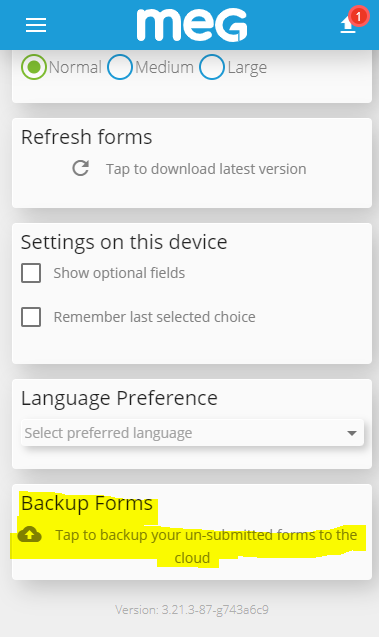
Use the Backup Forms option to upload all local forms to the cloud for safe keeping
Note
This option uploads only data input by currently logged-in user
Save draft audit to the cloud
Individual forms can be explicitly saved by pressing “Save” button under the form.
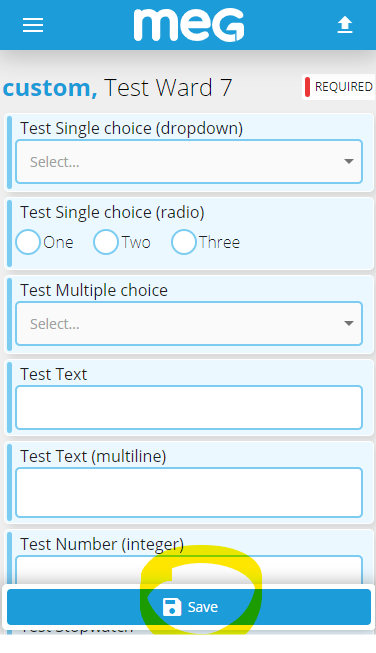
Tap “Save” to save draft version of the form. This uploads a copy to the cloud regardless of its validation status.
Warning
Saving draft is not the same as submitting the form. The entered data will not show in the dashboards until submitted. To submit the data, it needs to pass validation.
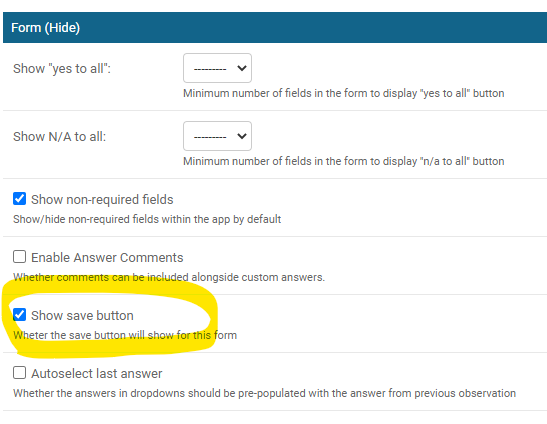
Retrieve backed-up data
To download backup data from cloud, go to “Saved Data” and click “Retrieve cloud backup”. A pop-up will show with a list of saved form data.
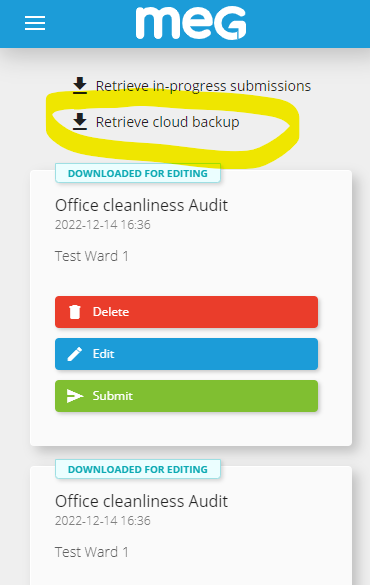
Click “Retrieve cloud backup” and select item from the list to download saved data.
Warning
Downloading data from cloud overrides local copy with a newer version fom the cloud if either:
the form data was originally backed up from this device
the form data was previously downloaded from this backup
In both cases downloading backup will in effect revert changes to the last backed-up state. This could of course lead to loss of data if changes were made to the data before downloading the back-up.
Note
if backup is downloaded on another device, it will result in two devices storing copies of the same audit data. If both devices submit this data, it can lead to duplicate submission to the back-end.
This can be intentional if user starts an audit and continues by filling out the rest of the form with different data on each device.