Overview
MEG Workflows allow administrators to configure automated workflows that can process and change data within the system in response to events. A workflow can currently be triggered by the creation or modification of an observation from the review screen. The only supported action is to create a new observation in a different form. Workflows also support multiple conditional stages, allowing for complex conditional logic. This model of workflows is highly extensible and will support new trigger events and actions in the future.
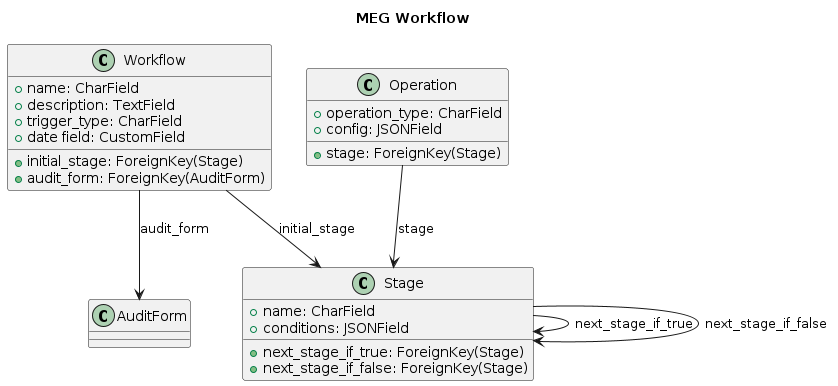
Data diagram for MEG Workflows
Usage Guide
Create the
Workflow. This is the entrypoint that triggers the workflow. You can specify the form, and the trigger type.Create the
Stage. Once created, add it to theWorkflowcreated in the prior step.Create the
Operation. This model defines the logic the workflow will implement. The only operation currently supported is to create another observation. The json config field allows you to configure this:Use Case 1: Risk Tracking Workflow - This workflow copies risk-related values from one form to another to track risks over time.
Example of copying a risk rating to another form designed to track them over time.{ "audit_form_id": 1, "ward_id": 2, "auditor_id": 3, "custom_answers": { "risk_name": "{trigger_object.custom_answers.risk_name}", "risk_rating": "{trigger_object.custom_answers.risk_rating}", "severity": "{trigger_object.custom_answers.severity}", "likelihood": "{trigger_object.custom_answers.likelihood}" } }
Note
{trigger_object.<PROPERTY_NAME>} allows you to use the data from the object that triggered the workflow. If you’re using a placeholder for the auditor_id you must use it for the ward_id, and vice versa. This is because if a hardcoded ward is used we can’t be sure that the {trigger_object.auditor_id} has access to that ward. {trigger_object.audit_form_id} is not supported as that would create a self referencing workflow.
Use Case 2: Contract Expiry Workflow - This workflow automatically updates the status of a contract based on its expiry date.
Example of updating the contract status based on the expiry date.{ "audit_form_id": 2, "ward_id": 3, "auditor_id": 4, "custom_answers": { "contract_status": "Expired" } }
Use Case 3: Conditional Workflow Cessation - This workflow evaluates conditions at each stage and ceases if the conditions are met or no next stage is defined.
Example of a workflow that ceases based on condition evaluation.{ "type": "query_form_entries", "form": 3, "filters": { "field": [ { "field": "mrn", "answer": "{trigger_object.custom_answers.mrn}" }, { "field": "created__gte", "answer": "{trigger_object.custom_answers.discharge_date}" } ], "operator": "and" }, "stop_if": true }
Use Case 4: Patient Follow-up Email Notification - This workflow sends an automated email notification.
Example of sending a follow-up email after patient observation{ "subject": "How was your stay?", "addr_to": "{trigger_object.custom_answers.email}", "message": "Dear {trigger_object.custom_answers.first_name},\n\nThis is a follow-up regarding your recent medical observation. Please click the link below to give us your feedback on your stay.\n\nBest regards,\nMEG", "links": [ { "label": "View Observation Details", "url": "https://patient-portal.example.com/observation/?mrn={trigger_object.custom_answers.mrn}" } ], "delay_hours": 48, "placeholders": { "trigger_object.custom_answers.first_name": "Patient", "trigger_object.custom_answers.email": "patient@example.com" } }
Note
Email operation supports dynamic placeholders using {trigger_object.custom_answers.<field_name>} syntax. Placeholders can be used in subject, recipient, sender, message, and link configurations.
Use Case 5: Patient Follow-up SMS Notification - This workflow sends an automated sms notification.
Example of sending a follow-up sms after patient observation{ "phone_number": "+1234567890", "language": "en", "content": "Dear {trigger_object.custom_answers.first_name}, We hoped you enjoyed your stay here. Please fill out this feedback form: https://audits.megsupporttools.com/webforms/ID?mrn={trigger_object.custom_answers.mrn}", "placeholders": { "trigger_object.custom_answers.first_name": "Patient" } }
Note
The language field is optional and inherits from institution settings when not specified. SMS operation supports dynamic placeholders using {trigger_object.custom_answers.first_name} syntax. Placeholders can be used in phone_number and content.
Use Case 6: Multiple Observation Creation From Multi-Choice - This workflow creates multiple observations for each fruit selected (choice in a multiple choice field)
Example of creating an observation for each selected choice{ "audit_form_id": 38, "ward_id": "{trigger_object.ward_id}", "auditor_id": "{trigger_object.auditor_id}", "choice_field_name": "fruits", "custom_answers": { "fruit": "{choice_value}", "comment": "{trigger_object.custom_answers.comment}" } }
Note
The choice_field_name parameter specifies which multiple-choice field to process. The {choice_value} placeholder contains the current choice being processed. Standard placeholders like {trigger_object.custom_answers.<field_name>} can also be used.
Use Case 7: Multiple Output Forms for Multi-Choice Field - This workflow creates multiple observations for each selected choice, with different output forms based on choice value
Example of creating observations in different forms based on selected choices{ "ward_id": "{trigger_object.ward_id}", "auditor_id": "{trigger_object.auditor_id}", "audit_forms": [ {"choice": "banana", "audit_form_id": 90}, {"choice": "apple", "audit_form_id": 90}, {"choice": "orange", "audit_form_id": 95}, {"choice": "pear", "audit_form_id": 95} ], "choice_field_name": "fruits", "custom_answers": { "fruit": "{choice_value}", "comment": "{trigger_object.custom_answers.comment}" } }
Note
Use
audit_formsinstead ofaudit_form_idto route different choices to different output forms. You cannot use bothaudit_formsandaudit_form_idsimultaneously. If a selected choice doesn’t have a matching entry inaudit_forms, it will be ignored (no observation created). Each target form must contain the custom fields referenced incustom_answers.Use Case 8: Send Web Requests Via Workflow - This workflow creates multiple observations for each fruit selected (choice in a multiple choice field)
Example of creating an observation for each selected choice{ "url": "https://url/resource/endpoint", "headers": { "api-specific-header": "gateway-key" }, "time_format": "%H:%M", "request_type": "xml", "ssl_cert": "-----BEGIN CERTIFICATE-----\n...\n-----END CERTIFICATE-----", "field_mapping": { "event_date": "EventOccurrenceDate", "event_time": "EventOccurrenceTime", "facilitymfid": "FacilityMFID", }, "related_forms": true, "authentication": { "password": "password", "username": "username" }, "object_mapping": { "id": "FaclityIncidentRecID", "session.start_date": "EventSubmittedDate", "session.updated_date": "EventUpdatedDate", "session.start_time_cleaned": "EventSubmittedTime", "audit_form.institution.name": "HealthCareFacilityName" }, "request_template": "<Root><MainDet><EventOccurrenceDate value=\"\"/><EventOccurrenceTime value=\"\"/><EventSubmittedDate value=\"\"/><EventSubmittedTime value=\"\"/><EventUpdatedDate value=\"\"/></MainDet></Root>", "multichoice_join_character": " ", "http_transaction_field_mapping": { "status_code": "doh_status", "url": "doh_url", "body": "doh_request_body", "request_data": "doh_request_payload" }
Note
urlSpecifies the endpoint the request will be sent to.
headersSpecified any additional headers that should be included in the request.
request_typeSpecifies the type of request to be sent; currently only xml processing is supporting and can only be sent via REST protocol.
ssl_certOptional. A string containing the SSL certificate (.pem format) to be used for the request.
field_mappingSpecifies the key/value mapping of custom_fields/answers to the request payload the endpoint expects. The key is the custom field and the value is the payload’s key.
related_formsA boolean value that specifies whether or not related forms should be queried for the mapping.
authenticationSpecifies the type of authentication protocol to send with the request; currently only basic auth is supported.
object_mappingSimilar to the
field_mappingparameter but instead uses the dotted path of the trigger object (observation) to retrieve values.request_templateSpecifies the structure of the request payload to be sent; at present, only stringified xml is accepted.
time_formatOptional. Specifies a format to use for time strings instead of the default which is %H:%M:%S. Must be a valid python time format string.
multichoice_join_characterOptional. Specifies a format to join multiple choices into a string.
http_transaction_field_mappingOptional. A dictionary mapping http transaction attributes to custom field names. Specifies a field on the form to save the value for each attribute from the http transaction.
Test the workflow. To verify it’s working, you can check the Celery dashboard in the Django admin. Look for tasks like process_workflow_stage.
Use Cases in Detail
Use Case 1: Risk Tracking Workflow
Trigger: Creation or update of an observation in the Risk Form.
Operation: Copies risk details to the Metric Form for tracking over time.
- Workflow Configuration:
Workflow: Triggered by Risk Form.
Stage: Adds a stage to process risk tracking.
Operation: Copies the risk_name, risk_rating, severity, and likelihood fields to the Metric Form.
Use Case 2: Contract Expiry Workflow
Trigger: Update of the Contract Form when the expiry date equals the current date.
Operation: Updates the contract_status field in the same observation to Expired.
- Workflow Configuration:
Workflow: Triggered by Contract Form and expiry_date.
Workflow Config: For answer date workflows, can specify the time of day to run the scheduled task on that expiry_date using: {“scheduled_time”: “14:30”}. If no scheduled_time is configured, the default scheduled time is 00:00 (midnight).
Stage: Adds a stage to process the expiry condition.
Operation: Evaluates the expiry_date and updates the contract_status.
Use Case 3: Conditional Workflow Cessation
Trigger: Evaluation of conditions at each stage.
Operation: Ceases the workflow if conditions are met or no next stage is defined.
- Workflow Configuration:
Workflow: Configured with multiple stages.
Stage: Each stage evaluates conditions to determine the next action.
Operation: Workflow ceases if conditions are met and next_stage_if_true is not specified.
Use Case 4: Send Email via Workflow
Trigger: Update of the Admission Details Form when the discharge_date equals the current date.
Operation: Sends an email to the patient with a Feedback Form link. The email content dynamically includes patient-specific details (e.g., name, MRN).
- Workflow Configuration:
Workflow: Triggered by Admission Details Form and discharge_date.
Stage: Adds a stage to process the send_email.
Operation: Evaluates the trigger object’s custom_answers fields to personalize the email body.
Use Case 5: Send SMS via Workflow
Trigger: Update of the Admission Details Form when the discharge_date equals the current date.
Operation: Sends sms to the patient with a Feedback Form link. The sms content dynamically includes patient-specific details (e.g., name, MRN).
- Workflow Configuration:
Workflow: Triggered by Admission Details Form and discharge_date.
Stage: Adds a stage to process the send_sms.
Operation: Evaluates the trigger object’s custom_answers fields to personalize the sms content.
Delay Options: Configure delayed email sending using delay_hours parameter (e.g., 48 hours after trigger)
Use Case 6: Multiple Observation Creation From Multi-Choice
Trigger: Creation or update of an observation with a multiple-choice field.
Operation: Creates a separate observation for each selected choice in the target form.
- Workflow Configuration:
Workflow: Triggered by a form with a multiple-choice field.
Stage: Adds a stage to process each selected choice.
Operation: Creates an observation in the target form for each selected choice.
Use Case 7: Multiple Output Forms for Multi-Choice Field
Trigger: Creation or update of an observation with a multiple-choice field.
Operation: Creates separate observations in different target forms based on each selected choice.
- Workflow Configuration:
Workflow: Triggered by a form with a multiple-choice field.
Stage: Adds a stage to process each selected choice.
Operation: Dynamically selects the appropriate target form for each choice and creates observations accordingly.
Mapping: Uses the
audit_formsconfiguration to map specific choices to their corresponding output forms.
Use Case 8: Send Web Request Via Workflow
Trigger: Creation or update of an observation with a multiple-choice field.
Operation: Maps the custom fields of that observation to the predetermined request payload and sends a HTTP POST request to an endpoint
- Workflow Configuration:
Workflow: Triggered by a form with a multiple-choice field.
Stage: Adds a stage to send request once value has changed to the desired input
Operation: Sends web request with mapping of custom fields to api endpoint
Note
When the trigger_web_request function request fails, client errors aren’t retried (4xx). Other crashes cause the celery task to be retried with a 5 minute exponential backoff.