Form set-up
Form configuration
Form configuration is typically stored in AuditFormConfig model.
Some options can be configured in config json field.
{
    "check_add_observation": true,
    "workflow_web_request_log_display_fields": ["status_code", "body"],
    "default_review_cycle": "monthly",
    "originator_editable_days": 7,
    "expiry_date_field": "date_field",
    "default_ward": 1
}
Advanced Configuration
Check add observation
Once need to restrict form submissions to users with specific permissions, an additional configuration option can be added as a JSON field in the advanced tab of the AuditFormConfig.
When enabled, users must have the add_customobservation permission to submit observations through this form, providing an additional layer of access control.
Type: Boolean
Default: false
Available Options:
false(default): Users can submit observations without explicitadd_customobservationpermissiontrue: Users must haveadd_customobservationpermission to submit observations
Example JSON Configuration:
{
    "check_add_observation": true
}
In this example, the form is configured so that only users with the add_customobservation permission can submit observations.
Related Permissions:
audit_builder.add_customobservation- Required when this option is enabled
Display web request logs in the review screen
Some workflows can make web requests to external APIs.
The response is stored in TrackerLogEntry.
This response can be displayed on the review screen in a format similar to the changelog.
To enable this you configure which fields from the response data you want to display in the JSON config field of the form config:
{
    "workflow_web_request_log_display_fields": ["status_code", "body"]
}
The available options are body, url, status_code and request_data.
Explicit Ward Access
By default, users inherit ward access globally based on their assigned wards. When explicit_ward_access is enabled,
users will only see observations in wards that are explicitly granted via Settings > Users > [User] > Form Permissions.
Type: Boolean
Default: false
Available Options:
false(default): Users inherit their global ward access for this formtrue: Users only see observations in wards explicitly assigned in their form permissions
Example JSON Configuration:
{
    "explicit_ward_access": true
}
How to grant ward access:
Go to
Settings > Users > [User] > Form PermissionsAdd specific wards to the user’s form permissions for this form
Note: When enabled with no explicit wards assigned, users will see no observations for that form.
Note: This ringfencing is overridden if the user is selected via a custom user field within the form (e.g., assigned auditor field).
Sequential IDs
If there is a need for an automatic sequential id on each Observation, an additional configuration option can be added as a JSON field in the advanced tab of the AuditFormConfig.
When enabled and configured, observations will be saved with a consistent, auto-incrementing id instead of the default generic id.
Example JSON Configuration:
{
    "sequence_ids": {
        "initial_id": 1,
        "format": "#{}"
    }
}
In this example, the form is configured so that auto incrementing will be saved, if there are no observations yet, 1 will be used as the initial ID, and the id display format will be overridden to use “#{}” e.g. “#123”, “#124”
Note
If set on an existing form with observations, sequence ids can be reset in form admin panel using “Reset Sequence Ids” action.
Observation review
This feature allows scheduling an observation to be reviewed at some date in the future.
It must be enabled in the AuditFormConfig before the option to schedule a review will display in the review screen.
Note
This feature is only available in custom forms.
Once enabled you can schedule an observation review from the observation edit page.
Observation review schedules will display in the calendar.
Default review cycle
Once the observations review feature has been enabled in the AuditFormConfig, an additional configuration option can be added as a JSON field in the advanced tab.
If appropriately filled in, once a new observation with this configuration is submitted, a review schedule will be automatically created.
Type: Choice (String)
Available Options:
once-off: Reviews are performed once.daily: Reviews are performed daily.weekly: Reviews are performed weekly.biweekly (every two weeks): Reviews are performed every two weeks.monthly: Reviews are performed monthly.bimonthly (every two months): Reviews are performed every two months.quarterly: Reviews are performed every quarter (three months).every 6 months: Reviews are performed every six months.yearly: Reviews are performed yearly.every two years: Reviews are performed every two years.
Example JSON Configuration:
{
    "default_review_cycle": "monthly"
}
In this example, the form is configured so that the observations are reviewable on a monthly basis.
The default_review_cycle value must be one of the predefined choices listed above. Otherwise, no ReviewSchedule will be created.
Notifications
You can configure the review to trigger a reminder e-mail to the associated auditors on the morning of the day the review is scheduled to take place.
Marking observations as reviewed
Once an observation has been reviewed by the reviewer they can mark it as reviewed on the observation edit page by clicking the button Mark As Reviewed.
This creates a TrackerLogEntry logging the time that the observation was reviewed at.
Allowing Originators Updating their own submissions
Once the “originator editable days” feature has been enabled in the AuditFormConfig,
auditors without review permissions can be allowed to edit their own submissions within a specific timeframe.
Example JSON Configuration:
{
    "originator_editable_days": 7
}
Field configuration
Conditional logic
Conditional logic, a.k.a. nested questions allows adding conditions to the forms. The logic is interpreted by the client app (or Web form) at the time the form is being filled in.
[
  {
    "field_name": "staff_type",
    "has_value": "Dr",
    "show": true,
    "set_value": null,
    "make_readonly": false,
    "make_required": true,
    "limit_choices": ["Periprosthetic #", "Diaphysis Clavicle #", "Lateral Clavicle #"],
    "always_update": false,
    "set_image": "https://megit.com/static/syringe.png"
  }
]
Note
Conditional logic is primarily executed on the client side during data entry. However:
* set_value action that for fields that do not display at the initial submission, is evaluated automatically after submission by the back-end.
* During the server-side calculation pass, a field’s visibility is evaluated with the same rules; conditionally hidden fields are not calculated.
Conditional logic is added to the “conditions” field in a question. It is a json list of conditions that when met, have one of the pre-defined effects on the field:
Supported condition options
- field_name
designates name of another field within the same form or a hardcoded field like (institution, department or ward) (required). The selected field will decide about the outcome of the condition
- search
search type for
has_valuecheck (optional).Search types: 1.
exact_match(default): check exact match between source and target field2.
contains: Check that target field contains source field value- has_value
predefined value. When field designated by
field_namehas this value, the condition evaluates true (condition is met) and triggers its associated actions.has_valuecan be given dynamic value instead of specific value in source field.nullcan be used for self-referencing conditions withset_valuelogic. this will use the condition’sset_valueas the default for this field:Example of setting email field default value to “email@example.com”[ { "field_name": "email", "has_value": null, "set_value": "email@example.com" } ]
*can be used for conditions withset_valuewhere the condition will be met for any value in the source field. this will also useset_valueas the default value:Set ward field to be ward manager on any value.[ { "field_name": "ward", "has_value": "*", "set_value": "{ward.manager}" } ]
!*can be used for conditions withset_valuewhere the condition will be met for any value that is not null in the source field. This will also useset_valueas the default value:Set ward field to be ward manager on any value.[ { "field_name": "ward", "has_value": "!*", "set_value": "{ward.manager}" } ]
using a custom
searchvalue to look inside field text value:Example of setting email field value to “staff@meg.com” when email field has an email that contains@meg.com[ { "field_name": "email", "search": "contains", "has_value": "@meg.com", "set_value": "staff@meg.com" } ]
Supported actions
The following actions are supported. To enable action, set its value to true or false. Leave it null if action is not used by the condition. Some actions (limit_choices) may accept a different type of value.
- show
show the field (makes it hidden by default). See Visibility semantics (client & server).
- make_required
makes the field required. This requires that field is initially non-required by default
- make_readonly
makes the field read-only when condition is met. Its value cannot be changed by the user. This is commonly applied in the review page to freeze value.
- limit_choices
for choice fields, this can be set to a list of strings representing a subset of choices. When condition is met, the choice items will be limited.
- always_update:
by default in review page, “set_value” conditions will only run when the field is empty, with always_update set to “true” the field will always update regardless of it’s current value
an example of conditional logic with “always_update”[ { "field_name": "email", "has_value": "*", "always_update": true, "set_value": "email@example.com" } ]
- set_image
Adds image to the field. The value should contain the image url (string). This action can also be generated automatically by using
image_fromfield config.- set_value
Sets given value to the field.
First item is an example of “set_value” setup, when email is empty the value “email@example.com” will be used by default. second is an example of “set_value” setup with placeholder, when name is empty the value of the current auditor’s name will be used by default, if a public web form without logged in user is used, the value will stay empty, third is an an example of “set_value” setup with an UserProfile field with[ { "field_name": "email", "has_value": null, "set_value": "email@example.com" }, { "field_name": "name", "has_value": null, "set_value": "{auditor.id}" }, { "field_name": "ward", "has_value": "*", "set_value": "{ward.manager}" } ]
Note
if
set_valueis set andhas_valueis not, or ifhas_valueisNone, it is assumed that the value is default and it will be used as the initial value (Task #25396).Note
If the field is not exposed to the client app (at initial submission), the value will be still set after submission by the server.
Note
“set_value” accepts certain placeholders, once configured the populated value would be used for the field in a web form, client app or server if not exposed at the initial submission.
{auditor.id}{auditor.name}{auditor.phone_number}{auditor.email}{ward.manager}the conditionfield_nameshould bewardto map it correctly
Note
When a hardcoded field is used, “set_value” should contain the
idof the needed object.
Visibility semantics (client & server)
These rules apply to visibility both in the UI and during the server calculation pass:
If there are any rules with
"show": true, the field is visible only if at least one of those rules matches.If there are no rules with
"show": true→ the field is visible by default.Conditions with
"show": falseare ignored for visibility and do not hide the field.Conditions without an explicit
showkey do not affect visibility (they may still perform other actions likeset_value,limit_choices, etc.).
Server-side evaluation
The back end evaluates a subset of conditional logic:
During calculation: when server-side field calculations run, each calculated field’s visibility is evaluated using the rules above. If a field is hidden, its calculation is skipped..
Join multiple conditions with “AND” logic
Typical conditional logic setup iterates over conditions and executes those that match the condition.
If you require more than one condition to match to invoke an action, replace field_name value with a nested condition object:
[
  {
    "field_name": {
      "fields": [
        {"answer": "Upper Limb", "field_name": "axial_limb"},
        {"answer": "Fracture", "field_name": "injury_type"}
      ],
      "operator": "AND"
    },
    "has_value": null,
    "show": true,
    "set_value": null,
    "limit_choices": ["Periprosthetic #", "Diaphysis Clavicle #", "Lateral Clavicle #"],
    "make_readonly": false,
    "make_required": true
  }
]
Nested conditional logic was implemented in Task #26313.
Calculation logic
Field calculations are triggered on the server-side after the initial submission, and after observation is modified in the review page.
Calculation configuration is a json object containing the following:
- operator: string
Name of the function applied to the named fields Supported operators include: “sum”, “difference”, “mean”, “product”, “multiply”, “quotient”, “divide”, “round”, “map”, “floor”, “concatenate”. More up-to-date list can be found in the implementation in
meg_forms/audit_builder/calculator.py:OPERATORS.- fields: list
A list of one or more field names whose value will be passed to the operator function. A field name can be a string (field name), a literal value, a pleceholder, or a nested calculation object.
- Supported field placeholders:
{today}{now}
wardauditor
createddate
session__start_timesession__end_time
{
  "operator": "difference",
  "fields": [
    "field1",
    "field2"
  ]
}
Visibility during calculation
Before calculating each field that has calculation logic, the back end evaluates that field’s visibility using the conditions defined. If a field is deemed hidden, its calculation is skipped (the field is not updated).
Key points:
If there are any condition with
"show": true, the field is visible only if at least one of those rules matches.If there are no condition with
"show": true, the field is visible by default.Conditions with
"show": falseare ignored for visibility (they do not make a field hidden).Conditions without an explicit
showkey do not control visibility (but may still perform other actions likeset_valueorlimit_choiceselsewhere).
Answer context used for visibility checks
For visibility evaluation during calculation, the server constructs an answers map that includes:
The observation’s own
custom_answers.For subforms: the sub-observation’s answers per subform.
This allows visibility to respond to both observation-level and subform answers during the calculation pass.
Operators
- sum: (1 or more values)
add up values from provided fields
- base64_encode: (1 or more values)
Return a base64 encoded string of the provided values.
- difference:
Take first field’s value and subtract all the remaining ones. If the value type is a date or datetime, there must be exactly two values
- mean:
Average of values
- product, multiply:
Multiply all values
- quotient, divide:
Takes value from first field, and multiplies by each value from remaining fields
- round: (1 value)
Rounds the first passed value. If second value is provided, it determines number of decimal digits.
- map: (2 values)
Takes first value and uses mapping passed as the second value to transform it to another value.
Map example{ "operator": "map", "fields": [ "value_field", { "value1": "new value if 'value1' was selected", "value2": "new value if 'value2' was selected" }] }
- map_multiple: (2 values)
Identical to map, but for mapping from multichoice fields to other multichoice fields. Takes a list of values from the source field, for each value in that list, if a transformation is available then that transformed value is included in the output.
- floor: (1 value)
Rounds the number down to the nearest whole number (integer)
- concatenate: (1 or more values)
Joins field values into a single string, separated by
-. All values are converted to their string representation before joining. The result field must be a text field. Accepts fields containing numbers or strings. Literal string values are not supported as field entries; use field names, placeholders, or numeric literals only.Concatenate example joining two fields and the ward placeholder{ "operator": "concatenate", "fields": [ "field1", "field2", "ward" ] }
Note
If a field has no value (
None), its string representation"None"will be included in the result.
Calculate max for a specific field
{
  "fields": [
    1,
    {
      "data": { "form": 10 },
      "field": "test_numberinput",
      "calculation": "max"
    }
  ],
  "operator": "sum"
}
Note
The form can be a related form or the custom field’s form itself.
Note
The max field can be an Integer, Float or a Date Field.
Periodically re-calculate field value
A field can be scheduled to automatically update its value. Create an update schedule for the form to update its fields daily. The values defined in the schedule are updated daily at midnight server’s time. This is typically Dublin, but depending on region, it can be Sydney time (Australia).
The re-calculation can be triggered manually in django admin. Last re-calculation date is visible in admin as well.
Note
fields updated this way do not trigger other calculations, even for fields that use the scheduled calculation field as the source value
Custom field Latest Changes
This feature allows viewing latest change on a specific custom file field or multiple file field. when enabled on custom field and form, the latest change date and user will appear in as a small text under the field.
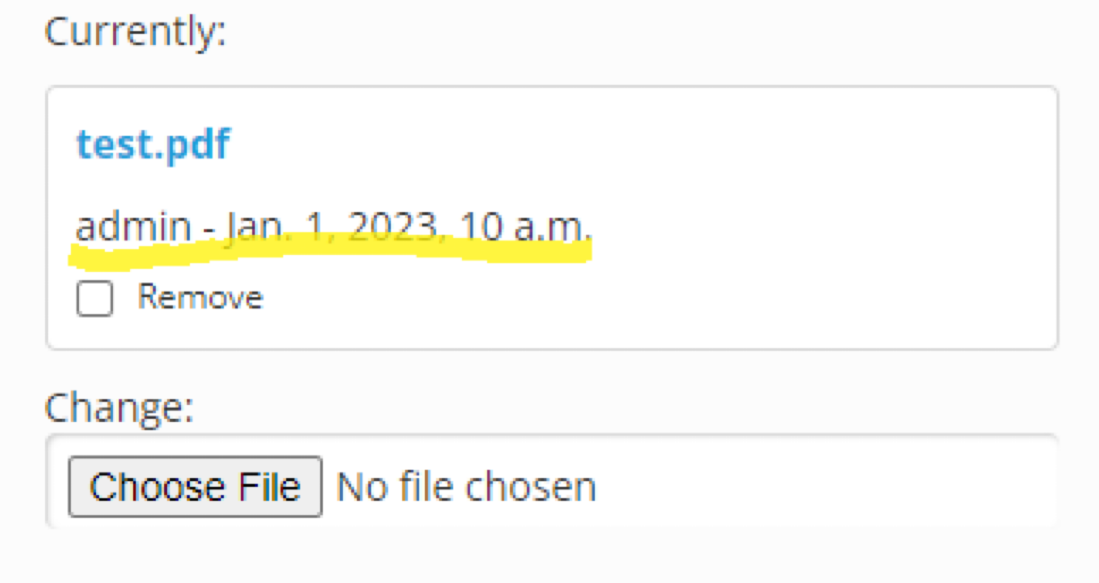
Custom field file field would show the latest change date and user.
Note
This feature is only available in review page.
Enable latest change on custom field
The latest change can be enabled or disabled through the Custom field’s Advanced Configuration field.
{
    "display_field_latest_change": true
}
Enable latest change on BaseAuditForm
By default BaseAuditForm sub-classes would have the latest changes feature disabled form wide,
to enable it for specific form you can either:
Override Form and
megforms.models.BaseAuditForm.show_field_latest_change. attribute
show_field_latest_change attribute overrideimport megforms.forms import BaseAuditForm
class CustomObservationForm(BaseAuditForm):
show_field_latest_change = True
# Rest of the form implementation
...
pass
show_field_latest_changein form kwargs when initializing.
show_field_latest_change kwarg overrideform_kwargs = {...}
form = CustomObservationForm(show_field_latest_change=True, **form_kwargs)
Custom Usage
The latest changes on a specific field can be retrieved using get_latest_changes():
ObservationChange.from megforms.models import TrackerLogEntry, ObservationChange
from audit_builder.models import CustomField, CustomObservation
observation: CustomObservation
custom_field: CustomField
latest_changes: list[ObservationChange] = TrackerLogEntry.objects.get_latest_changes(observation, custom_field)
print(latest_changes)
If passed to template they could be rendered using the audit_builder/field_changelog.html template:
latest_changes values in context.<span>
{% include 'audit_builder/field_changelog.html' with latest_changes=latest_changes %}
</span>
Remote form field
a CustomField can be configured such that it can use data from another form as the select choices. the data from the
remote form can be searched and fetched using an API that the widget uses.
Field Configuration
To configure the custom field, you need to use “Remote Form Select (single choice)” or RemoteFormSelect widget and
specify the following parameters in the JSON configuration:
- remote_form: int
the ID of the form that will be used as the data source
- remote_label_field_name: string
the
CustomFieldfield_name on remote form that will be used as the choice label.- remote_value_field_name: string
the
CustomFieldfield_name on remote form that will be used as the choice value. and as the value that will be saved to the observation custom answers.- remote_metadata_field_names: array of string (optional)
the
CustomFieldfield_names on remote form that will be added to the label as metadata ex: “{label} [{metadata_field1}, {metadata_field2}]”
{
    "remote_form": 1,
    "remote_label_field_name": "label",
    "remote_value_field_name": "value",
    "remote_metadata_field_names": ["metadata_field1", "metadata_field2"]
}
Note
The widget will use a “startswith” search filter on label field and “exact” search on value field.
Bypass Form Validation
It is occasionally required that a CustomField will need to be edited in an incomplete submission before data is gathered for all required fields.
By setting the bypass_form_validation flag to True in the Advanced Configuration, validation for the rest of the AuditFormConfig will be skipped when changes are made to only these flagged fields.
If any conditional logic affects the values or visibility of a field without this flag, that field will be considered a changed field without the bypass_form_validation flag, and validation will not be bypassed.
{
    "bypass_form_validation": true
}
Field Default value
A CustomField can be configured such that it can use a default value from another existing observations.
Field Configuration
To configure the custom field to use a default value, specify the following parameters in the JSON configuration:
- enabled: boolean
whether the default value is enabled or not (required)
- match_fields: array of string
the custom fields values to match when fetching default value from previous observations
- limit: int
limit observations defaults to x entries
- order: string
order of the default observations defaults to latest first
- nulls: boolean
whether a null value should be used if it was the latest found
{
    "default_value": {
        "enabled": true,
        "match_fields": ["test_select", "test_radioselect"]
        "limit": 1,
        "order_by": "-pk",
        "nulls": true
    }
}
Example API Call
MEG provides an API for fetching default value for any valid CustomField. A GET request can be sent to /api/v2/custom-field/<CUSTOM_FIELD_ID>/default-value/ to fetch the default values.
curl -X GET localhost:8000/api/v2/custom-field/<CUSTOM_FIELD_ID>/default-value/ -H "Content-Type: application/json" -H "Authorization: Token <TOKEN>"
[
    "default value"
]
Sentiment Analysis
Sentiment analysis is the process of analyzing digital text to determine if the emotional tone of the message is positive, negative, or neutral. Sentiment analysis runs on audit form text fields once setup. It is run after a form is filled in and submitted (as a background task). The output is saved to a single choice widget, which should not be shown to the user when they fill in the form.
[
  {
    "sentiment_text_field_name": "comment",
    "examples": [
      "El servicio fue excelente y la comida deliciosa.", "positive",
      "Terrible experience, would not recommend.", "negative",
      "La tienda está cerrada los domingos.", "neutral"
    ]
  }
]
Note
The sentiment_text_field_name field must be a text input field (TextArea or CharField).
The result from sentiment analysis is stored in a single choice field containing the above config.
Supported condition options
- sentiment_text_field_name
designates name of another field within the same form (required). The selected field must be a TextArea of CharField.
Required setup
The following options must be set as follows
- make_readonly
must be set / true. The results field must only be set by the sentiment task.
- editable
must be unset / false. The user should not be able to change sentiment result.
- show_in_app
must be unset / false. Sentiment field should not be shown to the user on form submission.
- choices
field values must be positive, negative, neutral.
For example:
negative,negativo
positive,positivo
neutral,neutral
unknown,desconocido'
- widget
must be single choice (dropdown) or single choice (radio)
Title Generation
Title generation analyzes detailed text fields to create concise, clear titles. The process runs as a background task after form submission, storing the result in a multi-line text field hidden from users during form completion. To setup title generation you need a text / multi-line text custom field which the user enters text into. Then you need a text custom field which stores the title and whose config sets up title generation. Setting up this title text field is detailed below.
[
  {
    "generate_title_from": "description",
    "examples": [
        ["Patient reported severe headache and nausea after workplace incident", "Workplace Head Injury Report"],
        ["Monthly safety audit found multiple fire exits blocked by storage boxes", "Blocked Fire Exit Safety Violation"]
    ]
  }
]
Note
The generate_title_from field must be a text input field (TextArea or CharField).
The result from title generation is stored in a text field (TextArea or CharField) containing the above config.
Supported config options
- generate_title_from
Name of source field within same form (required) Must be TextArea or CharField
- examples (optional)
List of [description, title] pairs Used to guide title generation style Each pair must contain two strings
General options
- show_in_app
must be unset / false. To be hidden during form submission.
- widget
must be TextArea (multi-line text field)
Model field filters
For custom fields that use a database model for their choices, you can specify a filter statement in the config json field of the audit_builder.models.CustomField.
The available choices for the field will be filtered based on the filter statement provided.
You can filter the model options based on any field or related field the model has.
{
    "filters": {
        "title__icontains": "consultant",
    }
}
Include inactive auditors
For custom fields that use Auditor for their choices, you can control whether inactive/deactivated auditors are included in the available options. Type: Boolean
Default: false
Behavior:
true: When editing an existing observation, both active and inactive auditors are shown. Any previously selected inactive auditors remain selectable in valid choices. Deactivated auditors are displayed with a “[Removed]” prefix.false: Only active auditors are shown in the field as valid choices, even when editing existing observations. Previously assigned inactive auditors will appear as deprecated choices (showing only their ID).
Example JSON Configuration:
{
    "include_inactive_auditors": false
}
This configuration is particularly useful when want to prevent selection of deactivated auditors, ensuring that only currently active auditors can be assigned to new or existing observations.
AI Auto Classification Of Reviews
This feature was implemented to leverage the power of chatGPT to auto classify customer reviews into any class without the need to train a specific classification model. More specifically it gives use the ability to create a multiple choice widget, with any desired classes, which stores the classes or topics present in a custom text field of the same form. These classes or topics are extracted using chatGPT 4o.
{
  "examples": [
    [
      "My nurse was lovely and I enjoyed the tea and toast after my operation. However I was given penicilin to bring home and I am allergic!",
      "Clinical"
    ],
    [
      "I was given tea and toast after my scope but I am celiac.",
      "Management"
    ],
    [
      "Great experience, lovely hospital.",
      ""
    ],
    [
      "I was waiting ages in A&E and I kept being ignored by the nurses, horrible experience would have been better off driving to Dublin.",
      "Management, Relationships"
    ]
  ],
  "extra_prompt": "You are analysing hospital reviews from patients. Some more info on the topics/classes: Clinical refers to surgical, doctor error or medicine issues. Management refers to food service or ward management issues. Relationships refers to issues related to staff attitude or caring issues.",
  "to_classify_field_name": "customer_review"
}
Note
The to_classify_field_name field must be a text input field (TextArea or CharField). The extra_prompt field must be a string and is optional. The examples field must follow the format above a list of lists of format [example, answer].
The result from auto classification is stored in a multiple choice field containing the above config.
Base prompt
messages_for_llm = [
    {
        "role": "system",
        "content": "You are an AI model who detects topics in customer reviews. You are to only report negative topics as these are flagged to management."
    },
    {
        "role": "system",
        "content": "When you receive a customer review, you will determine which of the following topics are present in that review: " + ", ".join(topics) + ". You can select as many topics as you like, including all or None."
    },
    {
        "role": "system",
        "content": "Return a python list of the selected topics with no other text or explaination. If you detected no topics return an empty list '[]'."
    },
]
This is the prompt fed to Chat GPT before asking for a text to be classified. It gives it more information on it’s task, specifies the style of the output and the classes or topics which it can choose from. Note that the model is set up to detect topics in reviews and to only highlight negative topics. Examples & extra prompt are also added to this as extra messages.
Supported config options
- to_classify_field_name
string, designates name of another field within the same form (required). The selected field must be a TextArea of CharField.
- extra_prompt
string, extra info on the specific task or classes to feed to chatGPT for more context on the task.
- examples
list, examples [question, answer] to help chatGPT understand its role better. In general giving more examples increases accuracy (few shot learning).
Required setup
The following field options must be set as follows
- show_in_app
must be unset / false. Results field should not be shown to the user while filling out the form.
- choices
any list of strings of minimum length 2
- widget
must be multiple choice widget
Audio Transcription
Audio transcription converts recorded audio fields into text, storing the transcribed content in a separate field. The process runs as a background task after form submission, storing the result in a multi-line text field hidden from users during form completion. To audio transcription you need an audio custom field which is used to record audio. Then you need a text custom field which stores the transcription and whose config sets up audio transcription. Setting up this transcription / text custom field is detailed below.
{
    "audio_transcription_field_name": "recording_field"
}
Note
The audio_transcription_field_name must reference an audio input field (AudioWidget).
The transcription result is stored in a multi-line text field (TextArea) containing the above config.
Supported field configuration options
- audio_transcription_field_name
Name of source audio field within same form (required) Must use AudioWidget
General field options
The following options must be set as follows
- show_in_app
must be unset / false. To be hidden during form submission.
- widget
must be TextArea (multi-line text field)
Assigned Subforms
This configuration allows subforms to be highlighted when a specific auditor is selected in a custom field. When enabled, the subforms listed in a field’s configuration will display an “ASSIGNED TO YOU” label when that auditor is identified in the field’s answer.
Type: Array of strings (subform names)
Default: Not set
How It Works
Create a custom field in a subform (e.g., a
ModelSelectfield pointing to theAuditormodel in subform A)In that field’s advanced configuration, add an
assigned_subformssetting with a list of subform names to highlightIf the current auditor’s ID appears in that field’s custom answers, the subforms listed in
assigned_subformswill be highlightedThe highlighting persists across the observation, so navigating away and back will maintain the highlighted state
Example Field Configuration
In a subform A with a field assigned_auditor, set the field’s config to:
{
    "assigned_subforms": ["subform_b", "subform_c"]
}
If the current auditor’s ID is found in the assigned_auditor field, subforms with names subform_b and subform_c will be highlighted.
Visual Indicators
When a subform is highlighted:
An orange dashed border appears around the subform tab
An “ASSIGNED TO YOU” label is displayed above the tab in both desktop and responsive views
The highlighted subform receives visual emphasis with hover effects
Phone number field
You can create a custom field to accept phone number data by selecting “Phone number” as the widget. It will display a dropdown of country codes and validates the user input to ensure it’s a valid phone number. In the config of the field you can restrict the country codes that are displayed
{
    "country_codes": [
        "IE",
        "GB"
    ]
}
By default if no country code exists in the phone number the package may not be able to parse the number format. You can set a default region to assist this parsing at the field level:
{
    "phone_number_default_region": "GB"
}
File upload fields
You can add file upload fields to a form in MEG. In the config of the field you can specify the allowed file types.
{
    "allowed_extensions": ["csv"]
}
Data Expiry Classes
- class megforms.tasks.DataExpiry(auditor: Auditor, expiry_date_field: CustomField | None = None, task_name_unpublish: str = 'schedule-data-unpublish-observation-{id}', task_name_delete: str = 'schedule-data-delete-observation-{id}')
Schedule observation deletion/unpublishing based on expiry date field configuration. Handles different form layouts:
Flat forms: Unpublishes the observation instance
Subforms (accordion layout): Unpublishes all related subobservations and parent
Subforms (default layout): Unpublishes only subobservations with expiry field
- Parameters:
auditor – The auditor instance
expiry_date_field – Field containing the expiry date answer
task_name_unpublish – Template for unpublish task naming
- schedule_data_unpublish(observation: CustomObservation | CustomSubObservationInstance) None
Evaluates and schedules the data unpublishing process based on the observation to evaluate If the observation has subforms, it will query the subobservation instance based on the current observation and evaluate the expiry date fiels Schedules the data_expiry_unpublish_data function as a periodic task
- Parameters:
observation – current observation to evaluate - can be either a custom observation or custom subobservation
Automatic Data Expiry
The system supports automatic unpublishing of observations based on configurable expiry date fields. This is handled through the DataExpiry class which schedules unpublishment tasks.
Expiry Behavior by Form Layout:
Flat forms: Unpublishes the entire observation instance when the expiry date is reached
Subforms (accordion layout): Unpublishes all related subobservations and the parent observation
Subforms (default layout): Unpublishes only the specific subobservations that contain the expiry field
Usage Example:
data_expiry = DataExpiry(
    auditor=auditor_instance,
    expiry_date_field="expiry_date",
    observation=observation_instance
)
data_expiry.schedule_data_unpublish()
Subform Handling:
For forms with subforms, the system automatically finds the earliest expiry date across all subobservations and schedules unpublishment based on that date. Only subobservations containing the specified expiry field are considered.
Task Scheduling:
The expiry system uses Celery’s Periodic Tasks to schedule unpublishment tasks. Tasks are named using the pattern schedule-data-unpublish-observation-{id} and will overwrite existing tasks with the same name.
Data Expiry Tasks
- megforms.tasks.data_expiry_unpublish_data(auditor_id: int, object_id: int) None
unpublishes data when invoked by the given periodic task schedule
- Parameters:
auditor_id – the id of the auditor that has initiated the unpublish process
object_id – the id (observation) of the object that will be queried and unpublished
Task Behavior:
The unpublishment task runs with force=True to ensure data is unpublished regardless of dependencies. A log entry is created with the message format: "Unpublished {obj}: {object_id} from data expiry policy"
- megforms.tasks.delete_custom_observation(observation_id: int) None
Permanently deletes an unpublished custom observation and all associated data.
Removes the observation, its sub-observations, issues and attached files related comments, log entries, tracker logs, model links and revision history in a single atomic transaction. This task is typically used for data retention policies to clean up draft or expired observations.
- Parameters:
observation_id – the id of the custom observation to delete
Task Behavior: - Atomic deletion of unpublished custom observations - Used for data retention policies on draft/expired observations
Deletes: - Custom observation + sub-observations - Related issues + attached files (photos/docs/audio) - Comments, log entries, tracker logs - Model links and revision history - Observation compliance records - Audit session (if no other observations exist)
Safety: - Transaction-wrapped for data consistency - Exception handling for file deletion failures - Sentry error tracking - Conditional cleanup to prevent orphaned data